
 Home
Home  all collections
  Themes
  Color Scheme
  Wallpapers
  My Collection
  Sign In / Register
 Install the extension and access your collection
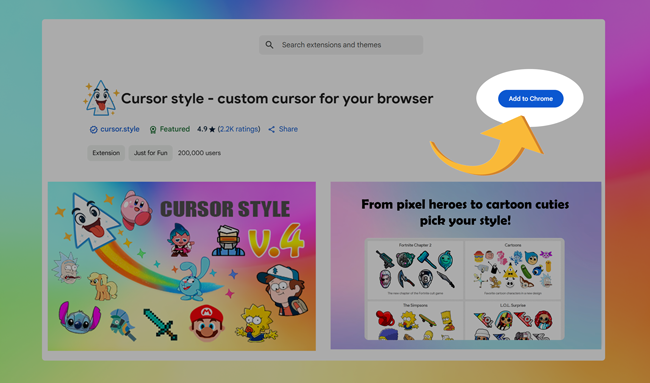
To install the Cursor Style extension, simply go to the official page in the Chrome Web Store and click the "Add to Chrome" button:
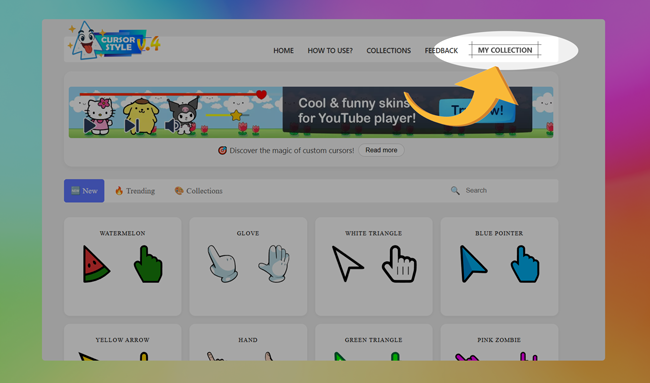
After installation, a new menu item called "My Collection" will appear on the website navigation bar. This section lets you manage all your favorite cursors and effects in one convenient place.
Access and manage your collection quickly
To instantly open your collection, just click on the extension icon in the top-right corner of your browser. This will take you directly to your personal collection window.
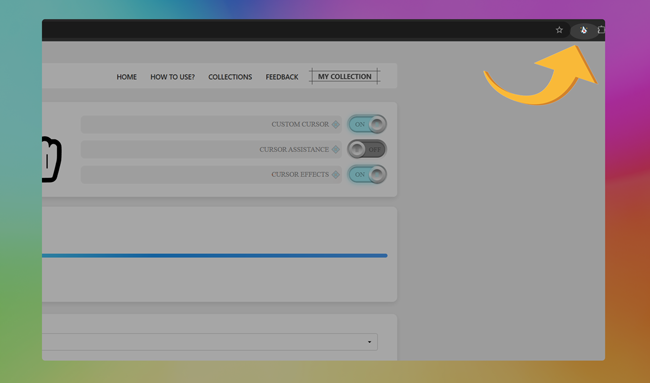
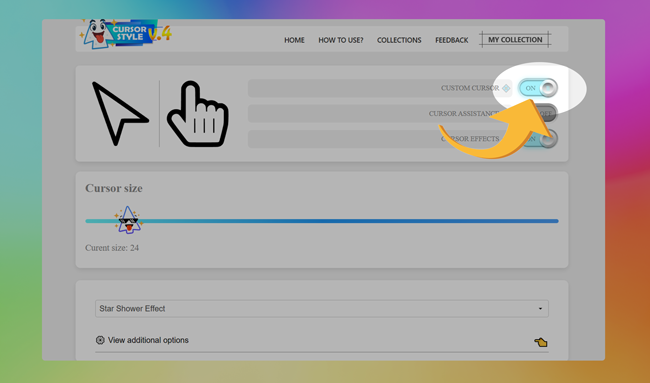
Inside the Collection tab, you can easily enable or disable the extension with one click. This helps you quickly switch back to the default system cursor when needed.
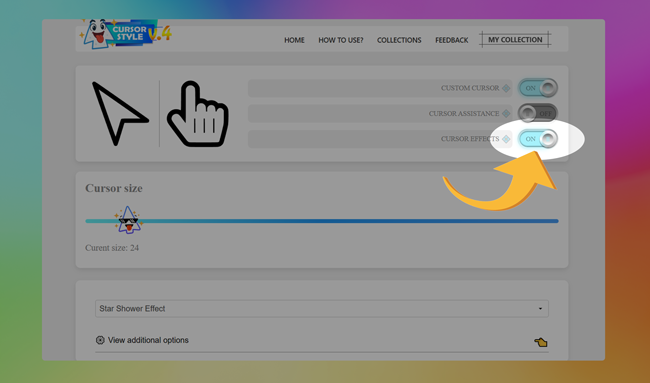
You can also enable visual effects for your cursor. Just toggle the effect switch, and your selected visual enhancement will be applied instantly.
How to apply a cursor from your collection
To use a cursor in the extension, you first need to add it to your collection. You can do this by clicking the “Add to Collection” button under the cursor preview. This adds the selected cursor to your personal list inside the extension.
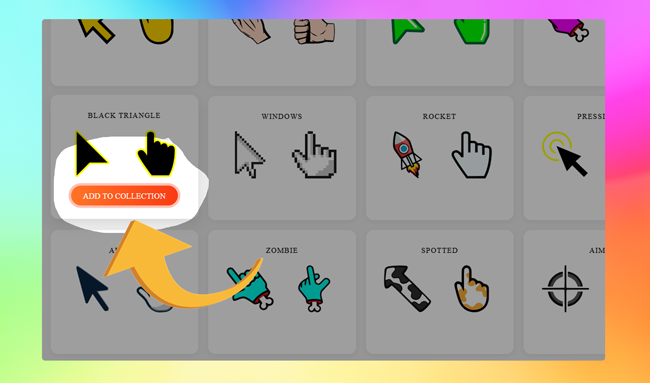
Once the cursor has been added, open your collection inside the extension. To apply the cursor, just click on it – and it will become your active cursor instantly.

How to use cursors inside extension?
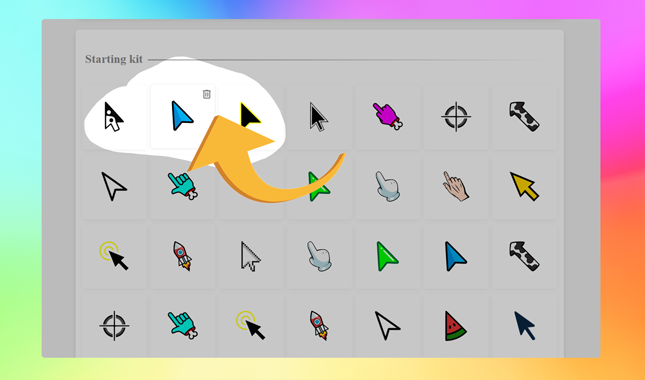
After you've added a few cursors to your list using the main extension interface, you might want to manage them. Removing a cursor from your active list is simple: just hover over the cursor you no longer need, and click the trash bin icon that appears on top of it. This action immediately deletes the cursor from your visible list, keeping your workspace clean and organized.
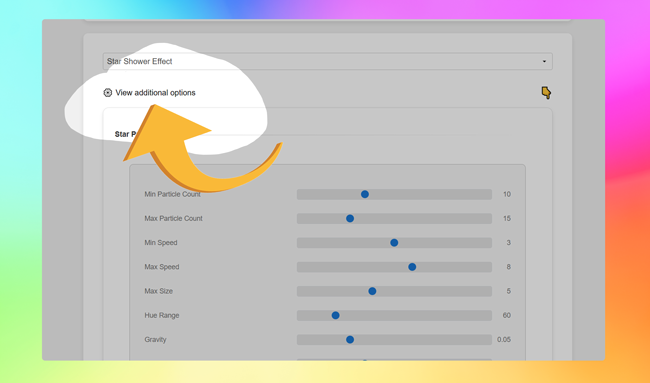
If you want to change the effect associated with a cursor, simply select it from the dropdown selector and click the "View additional options" button. There you can fine-tune how the effect looks and behaves to better suit your style.